Verified Genuine Digital License • Guaranteed Publisher Direct Activation
4.6(589 reviews)
$24.99$189.99-87%
In Stock — Ready to Activate
Retail Lifetime License
Windows 10 (32-bit / 64-bit PC)
Buy Windows 10 Pro genuine license key with instant email delivery. Lifetime activation, BitLocker security, Remote Desktop, and full updates.
BitLocker Drive Encryption & Security Tools
Remote Desktop Connection Host
Hyper-V Client Virtualization Support
Group Policy & Advanced System Controls
100% Genuine Microsoft Digital Activation
Lifetime License with Security Patch Support
1
Instant Delivery
< 60 seconds email
Genuine License
Verified Authentic
30-Day Warranty
Money-Back Guarantee
24/7 Support
Setup Assistance
Quick Facts & License Details (Direct Answer for Buyers)
License Model:Genuine authenticated digital software license.
Delivery Time:Digital delivery within 60 seconds via email with download link and verified key.
What is Included:Genuine license credentials, official publisher download package, and setup guide.
Buyer Protection:Covered by a 30-Day Money-Back Guarantee and full activation assurance.
Detailed Product Overview
Review the edition details, compatibility notes, and buying guidance below before you place your order.
Windows 10 Pro - Genuine Lifetime License Key gives you a practical way to buy a genuine retail lifetime license without waiting for physical delivery or dealing with unclear marketplace listings. This offer is built for home users, remote professionals, and small teams that need a stable operating system with dependable activation. Instead of paying full retail for features you already know you need, you get a clean purchasing path, immediate order processing, and a product page that spells out what is included before checkout. For shoppers comparing several software stores, that matters because the real value is not only the price. It is also the speed of delivery, the clarity of the product version, and confidence that the software you receive matches the edition you intended to buy.
Microsoft users usually care about whether the edition fits their workflow, whether installation is straightforward, and whether the purchase will continue to make sense months after activation. Windows 10 Pro - Genuine Lifetime License Key is positioned for exactly that kind of buyer. The combination of BitLocker Drive Encryption & Security Tools, Remote Desktop Connection Host, Hyper-V Client Virtualization Support, Group Policy & Advanced System Controls makes it suitable for buyers who want a direct solution rather than a trial-and-error setup process. When you compare it with entry-level versions, the difference usually comes down to flexibility, advanced tools, device coverage, or long-term convenience. That is why we highlight the edition details, platform guidance, and activation steps directly on the page.
Another reason this product performs well for search-focused product pages is that people are usually looking for answers to very specific questions before they buy. They want to know if the license is appropriate for Windows 10 (32-bit / 64-bit PC), whether the activation path is simple, what kind of features are available after installation, and whether the product is a sensible fit for personal use, business use, or professional work. This page is designed to answer those questions in plain language. You can review the comparison section, the system requirements, and the FAQ without needing to leave the product page or guess what is included.
If you are evaluating Windows 10 Pro - Genuine Lifetime License Key today, the best buying approach is to match the edition to your real workload. Buyers who only look at the headline price often end up choosing a version that lacks an important tool, while buyers who review the details usually make a better long-term decision. That is why this page combines pricing, compatibility notes, activation guidance, and related alternatives in one place. The goal is simple: help you purchase the right license quickly, activate it correctly, and move on with work using a product that already fits your needs from day one.
Product
Windows 10 Pro - Genuine Lifetime License Key
Category
Operating Systems
License Type
Retail Lifetime License
Platform
Windows 10 (32-bit / 64-bit PC)
Delivery
Instant (< 60 seconds)
Language
Multi-language
Region
Global — works worldwide
Windows 10 Edition Comparison
Use this quick comparison to see where Windows 10 Pro - Genuine Lifetime License Key fits against nearby editions. This helps you choose the right license before checkout instead of upgrading later because a key feature was missing.
Feature
Windows 10 Home
Windows 10 Pro
Windows 10 Enterprise
Best for
Personal devices
Work and business use
Enterprise fleets
Device management
Basic
Domain join + Group Policy
Advanced deployment controls
Remote access
Basic
Remote Desktop host
Enterprise management tools
Security
Standard
BitLocker + policy controls
Advanced security stack
Ideal buyer
Home users
Professionals and offices
Managed organizations
System Requirements
Confirm these requirements before activation so installation goes smoothly on the device where you plan to use Windows 10 Pro - Genuine Lifetime License Key.
Processor: 1 GHz or faster compatible 64-bit processor.
Storage: 64 GB available space or more before installation.
Graphics: DirectX-compatible graphics with current drivers.
Connection: Internet access recommended for updates and account verification.
Product FAQ
These are the most common questions buyers ask before purchasing this edition.
What is included with Windows 10 Pro - Genuine Lifetime License Key?
Windows 10 Pro - Genuine Lifetime License Key includes the purchased retail lifetime license, the activation details needed to start using it, and access to the guidance on this page so you can complete setup without guesswork.
Will Windows 10 Pro - Genuine Lifetime License Key work on Windows 10 (32-bit / 64-bit PC)?
This edition is intended for Windows 10 (32-bit / 64-bit PC). Before ordering, compare the system requirements and the platform notes on this page so you choose the edition that matches the device you actually plan to use.
How is Windows 10 Pro - Genuine Lifetime License Key delivered after payment?
Orders are processed digitally. Once payment is confirmed, the order moves through the delivery flow described on the site, and you can follow the activation guide on this page to complete setup correctly.
Is this the right edition if I need more advanced features later?
If you expect your workload to grow, use the comparison table on this page before checkout. It shows where entry, mid-tier, and advanced editions differ so you can buy the version that fits your long-term needs.
What should I do if activation does not complete on the first try?
Work through the activation steps in order, verify that the device meets the requirements, and make sure the correct account or application screen is being used. If the issue continues, support can review the order details with you.
Activation Guide
Follow these steps in order to activate Windows 10 Pro - Genuine Lifetime License Key correctly on the first pass.
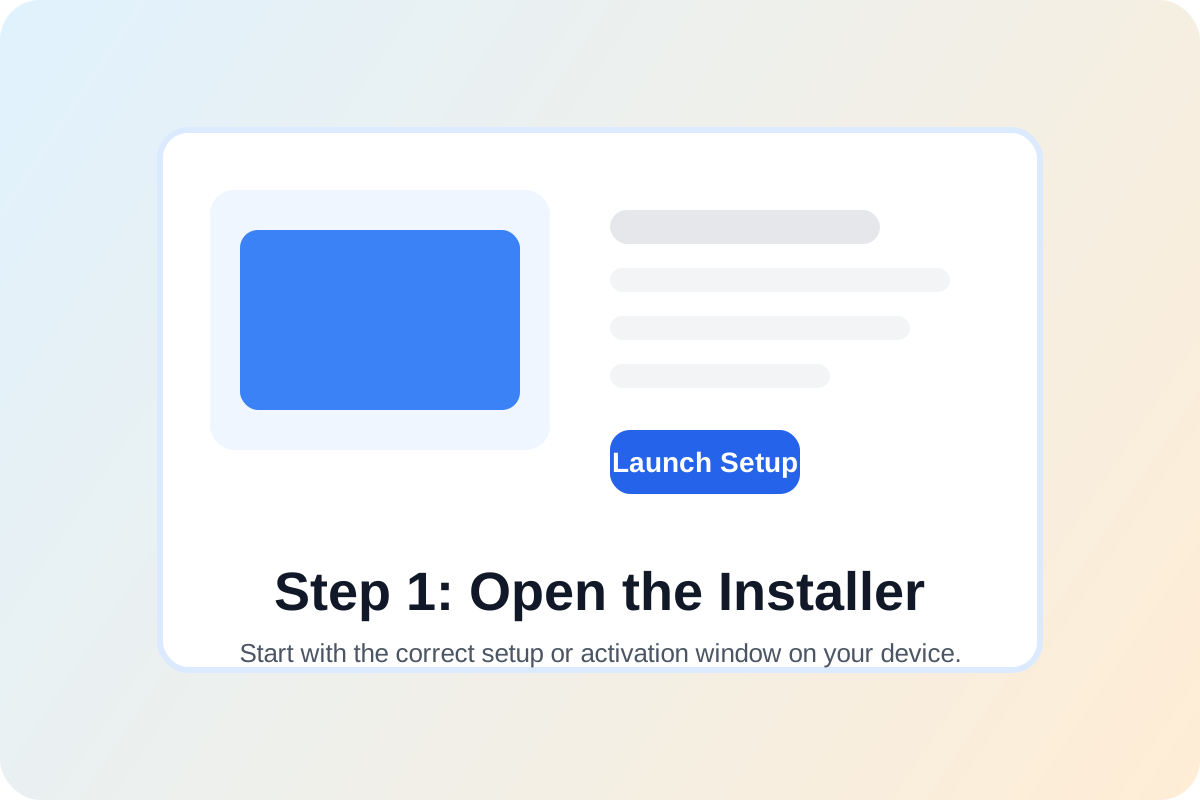
Start on the device where you want to use Windows 10 Pro - Genuine Lifetime License Key. Open the product installer, account portal, or software activation window for this edition before entering any license information.
Step 2
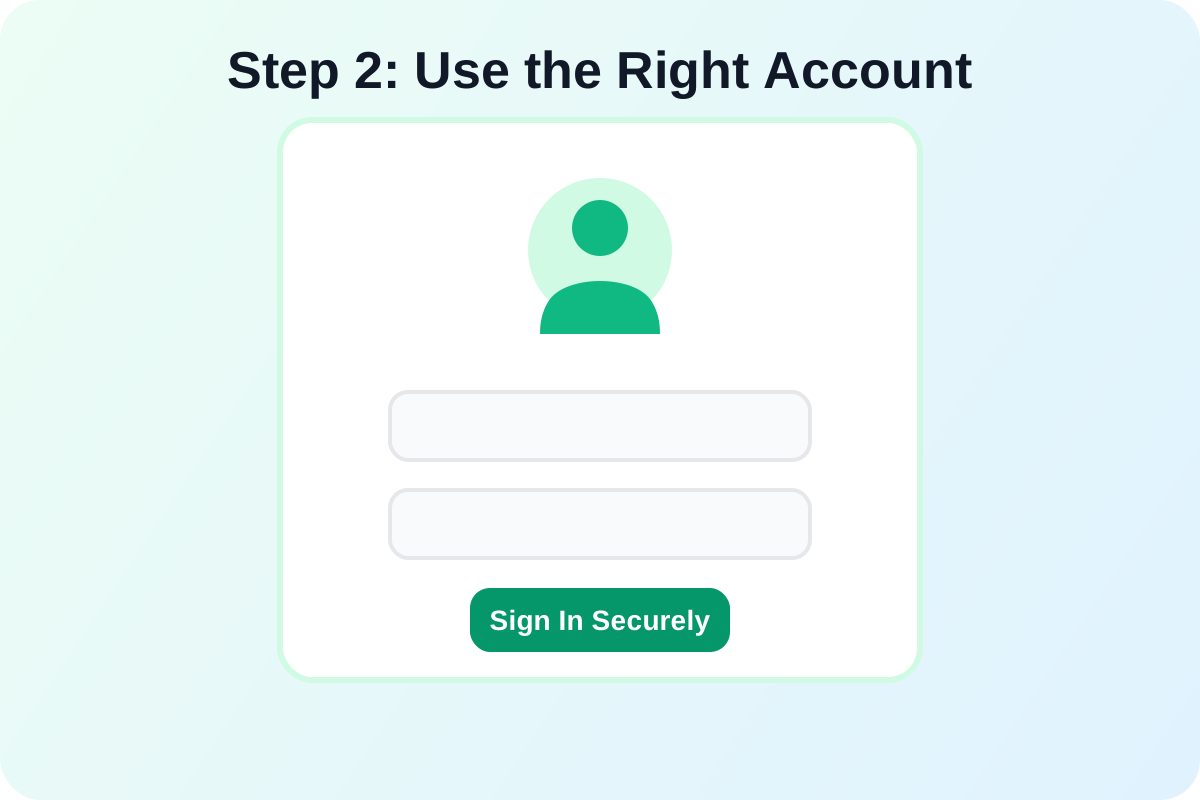
Sign in with the correct account if required
If the software uses an account-based workflow, sign in with the account you intend to keep using. This helps prevent activation confusion later when updates or downloads are tied to that account.
Step 3
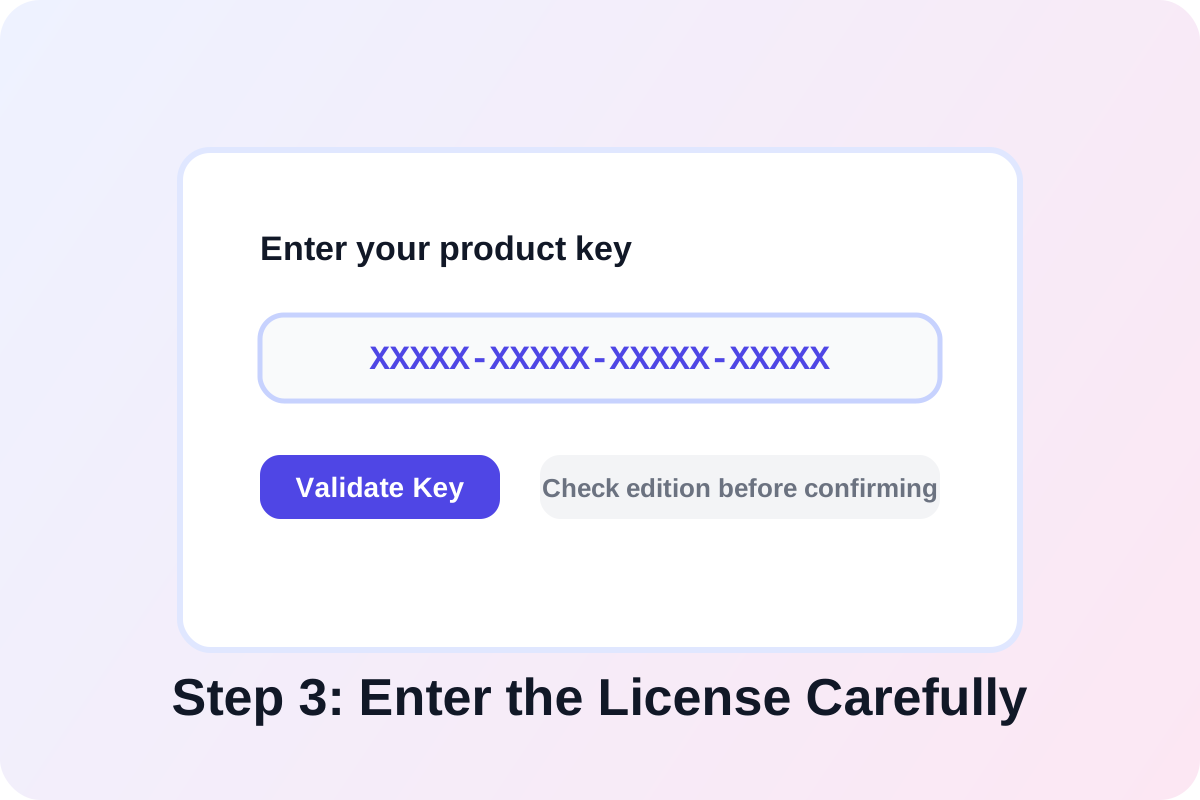
Enter the license details carefully
Copy the activation information exactly as provided, then paste or type it into the product key, subscription, or redemption field. Check for extra spaces and confirm you are using the matching product edition.
Step 4
Confirm activation and verify product status
Finish the on-screen prompts, restart the application if needed, and verify that the software now shows an activated status. After that, run updates so the installation is fully current and ready for use.